
Formulieren ontwerpen
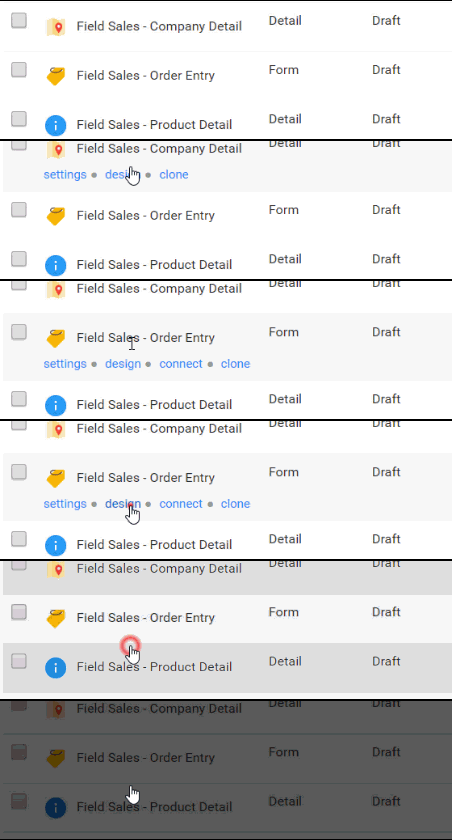
The question types available are as follows:
Page / Group
This is a common type that you should use whenever you want to repeat questions or show multiple fields on the same screen.

Section
This is a read-only field type that lets you display text and/or an image in the Form.

Text
The simplest question type that allows capture of any text value. You can specify a desired format to force entry of values like email and web addresses, as well as phone numbers.

Numeric
For capture of number values. You can restrict to either integer or decimal values as well as the range of values permitted.

Date/Time
Allows capture of date and/or time values.
Choices
Allows you to specify a list of choices for the user to answer from. You can specify whether a Choices question permits only one answer or multiple answers. Choices questions can also use Data Sources for their options – Data Sources are a powerful feature that allows you to maintain answer lists centrally and share these lists between multiple Forms.


Location
Allows the app user to capture a geographic location using their device GPS or by picking a point on a map.

Media
For capture of photos, video and audio using the app user’s device. Any media captured is uploaded as part of the Form entry.

Drawing / Sketch
Provides the ability to capture drawings on the device touch screen. This is useful for capturing signatures as well as sketching simple diagrams.

Barcode
Allows the capture of common barcode formats and QR codes using the device camera.
The answer value returned is the barcode contents – e.g. the product number found in the barcode.

Hidden Field
Stores default or calculated values that are never displayed to the user.

User Action
Displays a button that can launch the user into a number of different actions such as:
- Dialing a phone number
- Opening a web page
- Creating an email
- Opening another Screen in the app
- Opening a Doc for reading
- Displaying a location/address on a map

Table
Displays a table of rows, with each row containing the same repeated set of fields. Users can then add/edit rows by tapping through into a page of the row fields.

Data
A hidden field that selects the matching row from a given Data Source based on the dynamic filters you specify.

This powerful question type allows you to create Forms that move between multiple app users – useful for processes like approvals or sign offs.
Form Tasks create a “cut off” that will stops the Form wherever the Form Task appears and prompts the app user to choose someone else to send the Form onto.
The Form entry is saved at that point and then sent as a Task to the selected person.
So you could have say an order Form which uses a Form Task to handle an approval process – the first app user creates the Form entry and fills out the order details.
Then a Form Task sends the entry onto a supervisor for Approval as a Task.

ANDROID ONLY


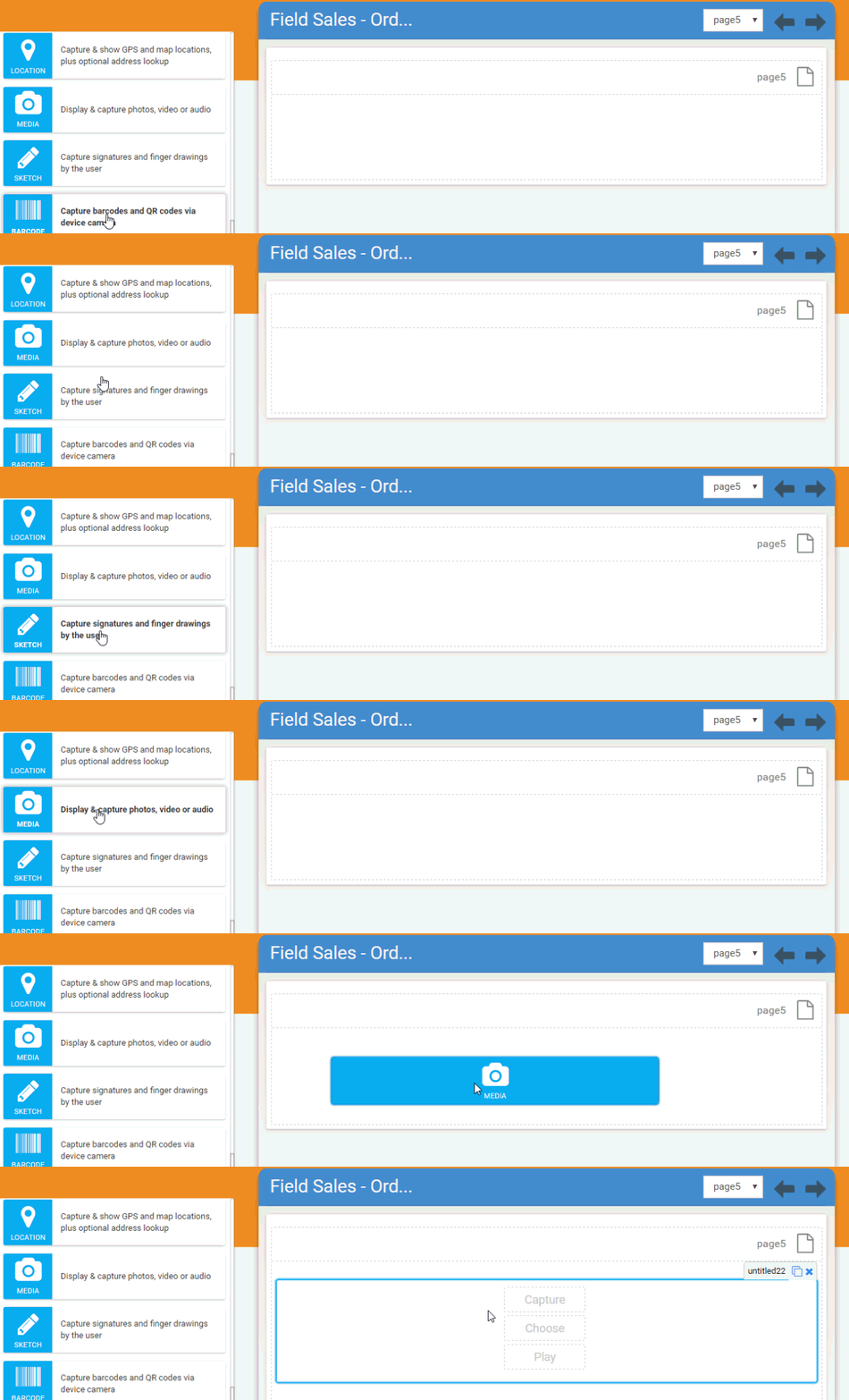

- Every question must have a unique Data Name which is the column heading you will see in the Data tab, as well in data exports you may perform.
Data Names cannot have spaces or special characters. - Display Text is the question text that will display on the Form to the app user
- The Hint property lets you specify additional text to explain the question to the app user
- Most questions have Read Only and Required options, which enable you to prevent data entry and require an answer respectively.
The Read Only option is generally useful when you want to show a message or fixed answer to the app user. - Most question types also have an Advanced section which lets you specify a default value, control question visibility, validate answers and redirect answers to another question.
Advanced properties require you to define a special formula that is similar to an Excel formula in nature. See our Creating Formula topic for details.
