
Verwijzen naar een veld in een tabel / datasource

The Form Designer allows you to link Choices fields to a Data Source that you have previously uploaded.

Data Sources can have as many columns as you like, and you may want to refer to the values in these columns when creating a Form.
To do so you will need to use a formula to refer to the desired column.

By default the first column in a Data Source (also known as the Value column) is always used as a field’s answer.
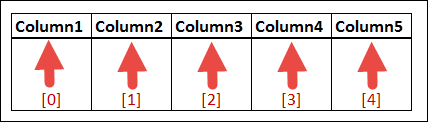
If you want to refer to any other column’s value, you need to use an index syntax – specifically you need to add square brackets around the column’s index number – e.g. {{product[index]}}

Data Source column indexes always start at zero – i.e. the first column has index of 0, the second column has index 1, third column is index 2, and so on.
Lets look at an example
Imagine you have a Data Source called “Products” that contains your product list, with rows such as:

You create a Form named “Sales Order” which you will use to capture orders for your products.

The Form has the following fields:

  • product_choice : A Choices field that is linked to the Products Data Source.
  • quantity : A Number field that captures the quantity of product ordered.
  • total : A Number field that will calculate the total amount by multiplying the product’s price by quantity.

On the “total” field, you would define a Dynamic Value formula as follows: {{product_choice[2]}} * {{quantity}}

Note the square brackets and index value of 2 used to refer to the 3rd column (the Price) in the Products Data Source.

Vergelijkbare berichten

  • Formulier instellingen

    The Settings page is accessed from the “settings” link in the option bar of the Form Designer. You can also enter this page by rolling over the rows in the Screens Listing screen and clicking“settings” option. Our platform provides a simple versioning and publishing approach to manage your Forms. This means that after creating a new Form, you…

  • | |

    Overzichtsscherm

    Het overzichtsscherm (Board of Icons) is een scherm om verschillende formulieren op een overzichtelijke wijze weer te geven. Zo kan een gebruiker eenvoudig navigeren naar het scherm dat hij op dat moment nodig heeft. Om een ​​overzichtsscherm toe te voegen; Navigeert naar Apps -> Screens Klik op de knop + Add new Geef uw overzichtsscherm…

  • Een formule gebruiken

    Most advanced Form functions involve the use of a formula. As such it is critical that you understand how to create formulae in order to get the most out of our advanced features. First off you need to know how to address or refer to a field in your Form. This is done by using placeholders wherever you…

  • Inleiding

    The Form screen type is the primary way that you can build data capture screens on the platform. This allows you to rapidly replace paper forms with digital versions, as well as extend existing data capture screens from desktop or web systems to a mobile app. Your users will be able to collect data in the…

  • |

    Keuzevelden (Choices)

    In ons systeem lijkt het veldtype Keuzes (Choices) op een Zwitsers zakmes – het is een multifunctioneel veld waarmee keuzes op verschillende manieren kunnen worden weergegeven. Hieronder vindt u enkele diepgaande details over belangrijke aspecten van het veldtype Keuzes. Weergavestijl (Display style) Dit bepaalt hoe uw veld Keuzes worden weergegeven voor de app-gebruiker. We bieden…

  • Formule functies

    For the latest information on Formula Operators and Functions, check out our built-in reference inside the Formula Builder dialog on our web platform. Whenever you see a “hammer” icon appear next to a field, you can click this icon to launch the Formula Builder. For example in the Form designer, if you click on a…